
Recurring Inbox Test Email Notifications
This guide explains the two types of email notifications you can receive from your Recurring Inbox Test: Report emails and Alert emails.
Overview
| Report Email | Alert Email | |
|---|---|---|
| Purpose | Regular summary of your inbox placement results | Immediate notification when spam folder rate spikes |
| Sent from | Aurora Sendcloud | Aurora Sendcloud |
| Subject prefix | Recurring Inbox Test Report | Spam Folder Rate Alert |
| Frequency | Daily, Weekly, Monthly, or Off (your choice) | Sent only when a threshold is triggered |
| Can be turned off | Yes | Not recommended — you can adjust thresholds instead |
Report Email
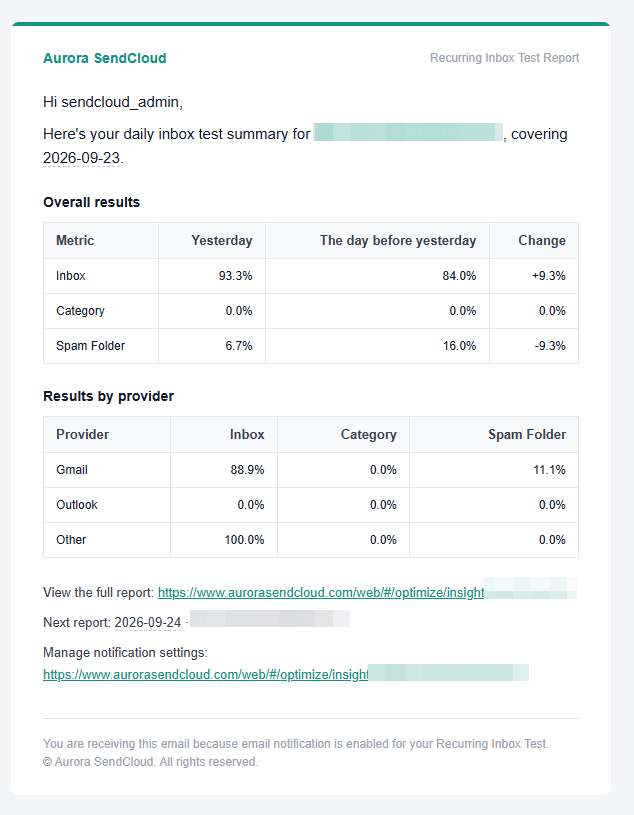
What it shows
Every report email includes:
- Overall results: Inbox rate, Spam Folder rate, and Missing rate, compared to the previous cycle.
- Results by provider: A breakdown of the same metrics across Gmail, Outlook, and other providers.
- A link to the full report on the platform, and a one-click link to turn off report email.
How the schedule works
You can choose how often you receive report emails:
- Daily — a new report every day
- Weekly — one report per week, always sent on Monday
- Monthly — one report per month, always sent on the 1st
- Off — no scheduled reports (you can still view results anytime on the platform)
First-cycle behavior: When you first create a recurring test, you’ll receive daily reports automatically for the first 7 days — this helps you quickly build a baseline before switching to your selected frequency. Once your setup reaches the next scheduled point (the next Monday for Weekly, or the 1st of the next month for Monthly), your reports will switch to that frequency going forward.
Alert Email
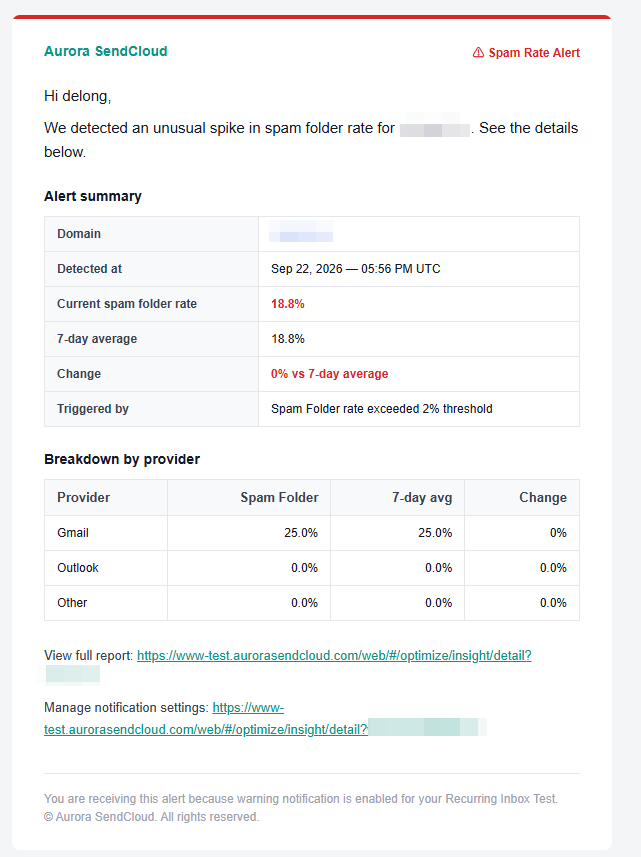
When you’ll receive one
Alert emails are sent automatically when your Spam Folder rate meets either of the conditions you’ve configured:
- Spam Folder rate increases by more than [X]% compared to your 7-day average
- Spam Folder rate exceeds [Y]%
You can adjust both values, and you can turn off either condition individually — but we recommend keeping at least one active so you don’t miss a real spike in spam placement.
Note: There’s no universal “safe” spam folder rate — it varies by email type and provider. We suggest starting with a 10% threshold and adjusting based on your own baseline over time.
What’s in the alert email
Each alert includes:
- Alert summary: your domain, when the spike was detected, your current spam folder rate, your 7-day average, the percentage change, and which condition triggered the alert
- Breakdown by provider: so you can see whether the spike is happening across all providers or just one (for example, only Gmail)
- A link to the full report, and a one-click link to mute alerts for that domain if needed.
Alert frequency limits
To avoid overwhelming your inbox, each domain can trigger 3 alerts within a 24-hour period. If your spam folder rate stays elevated, you’ll still be notified, but not repeatedly for the same ongoing issue.
Who receives these emails
Both report and alert emails are sent to the recipient list configured in your notification settings. By default, this includes the account creator, but you can add or remove teammates from this list at any time.
Only verified teammates on your account can be added as recipients — you can’t enter arbitrary email addresses.
How to manage your settings
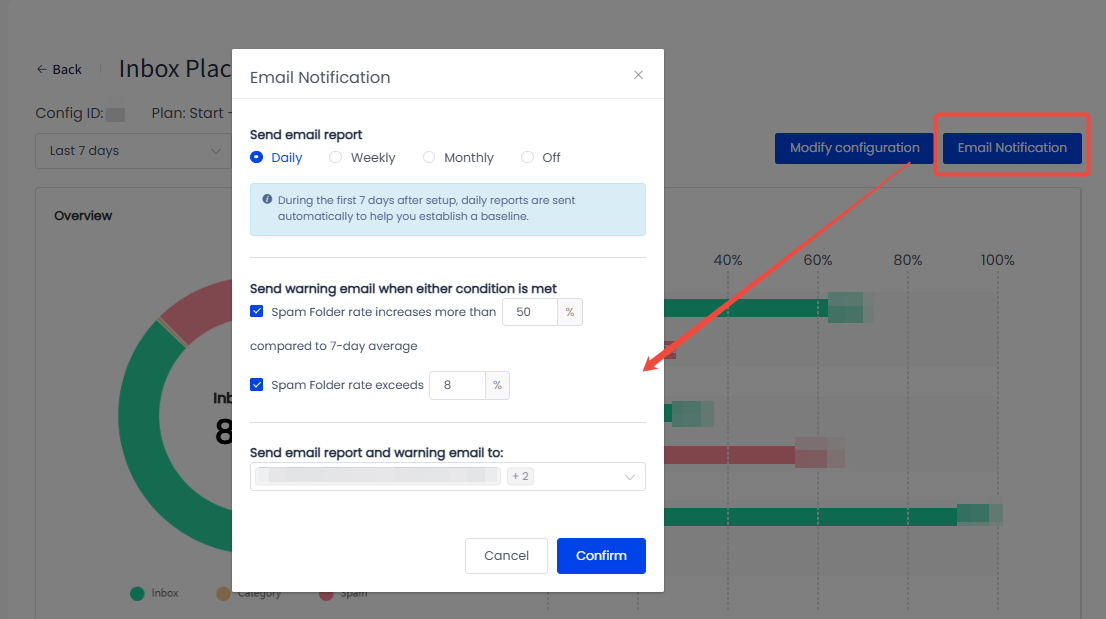
You can update your report frequency, alert thresholds, and recipient list at any time:
- Go to your Recurring Inbox Test
- Open Email Notification
- Adjust your preferences and save
Changes take effect starting from your next scheduled test.
FAQ
Q: I don’t want any emails at all — can I turn everything off?
Report emails can be turned off completely by selecting Off. Alert emails don’t have an “Off” option, but you can uncheck both conditions if you prefer not to receive them — just note that doing so means you won’t be notified if your spam folder rate spikes unexpectedly.
Q: Why did I get a daily report even though I selected Weekly?
This is expected during your first few days after setup — we send daily reports briefly to help establish your baseline before switching to your selected frequency.
Q: The alert email mentions a percentage change — what is it comparing against?
It compares your current spam folder rate to your 7-day rolling average, not to a single previous day. This helps avoid false alarms caused by one-off fluctuations.
Q: Can I mute alerts temporarily, like during a planned campaign change?
Yes — every alert email includes a one-click mute link for that specific domain.
Updated about 2 hours ago