
How to Setup Domain on GoDaddy
Step-by-step guide to configure DNS records on GoDaddy for Aurora SendCloud. Learn to set up SPF, DKIM, MX, and DMARC records for optimal email delivery.
Overview
This guide walks you through adding a primary domain or subdomain in GoDaddy and configuring the DNS records required by Aurora SendCloud. It assumes you already have a GoDaddy account.
If you encounter errors or issues when configuring DNS records in GoDaddy, contact GoDaddy's support team. They can identify and resolve DNS-related issues most quickly.
Choosing a Primary Domain or Subdomain
Before proceeding, decide whether to use your primary domain or a subdomain. We recommend reviewing the following Aurora SendCloud article:
How to choose a sending domain
Here's a quick review of two key terms:
- Primary domains include aurorasendcloud.com, mydnsexample.com, or google.com.
- Subdomains include relay.aurorasendcloud.com, sc.mydnsexample.com, or mail.google.com.
Subdomains have an additional prefix (sometimes multiple prefixes) before the main domain. In most cases, using subdomains with Aurora SendCloud is the preferred option.
Once you've made your decision, add the domain or subdomain to your Aurora SendCloud account, and our system will generate the various DNS records required.
Adding a Domain
You can add a domain or subdomain to GoDaddy in several ways:
Method 1: Register a new domain/subdomain with GoDaddy.
Method 2: Transfer the registration of an existing domain or subdomain from another domain registrar to GoDaddy.
Method 3: Configure the name servers of the existing domain or subdomain at your domain registrar to reference GoDaddy instead of your current DNS provider.
This guide will focus on the first and third methods.
Registering a New Domain (Method 1)
To create a new domain or subdomain hosted on GoDaddy, follow these steps:
- Log in to your GoDaddy account.
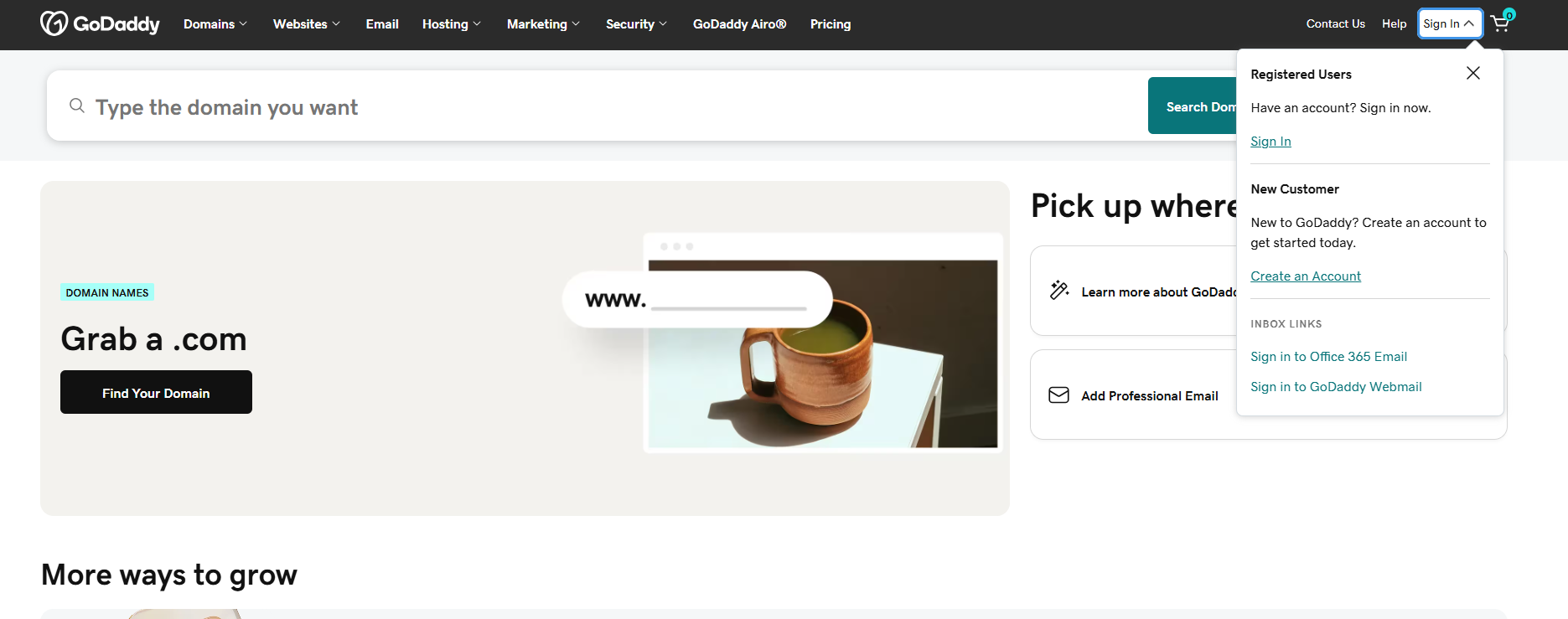
- Enter the new domain name you want to purchase into the text box in the center.
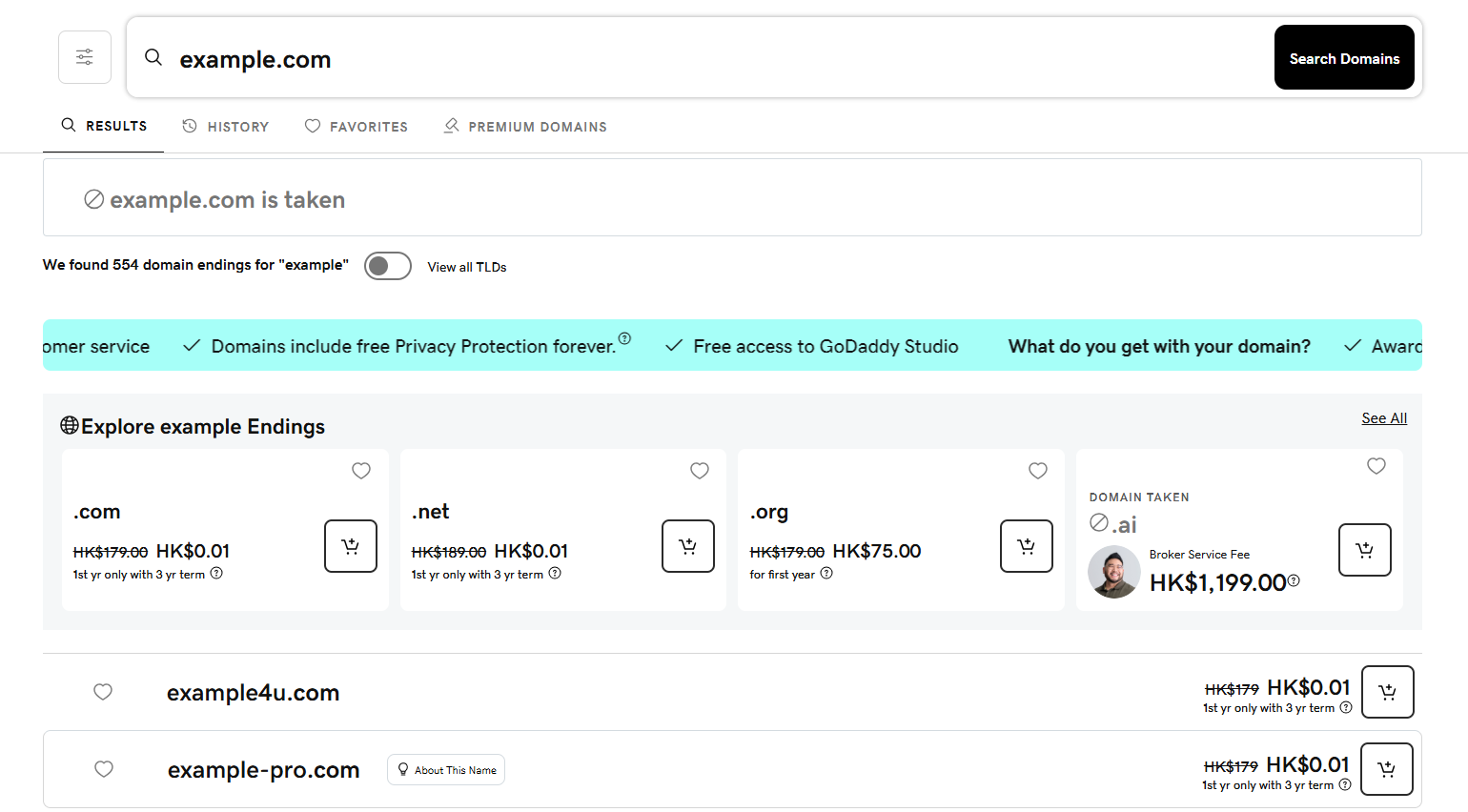
- Follow the prompts to provide payment and complete the domain registration process.
Using an Existing Domain (Method 3)
If you have a domain or subdomain registered elsewhere and want to manage its DNS with GoDaddy, follow these steps:
- Log in to your GoDaddy account.
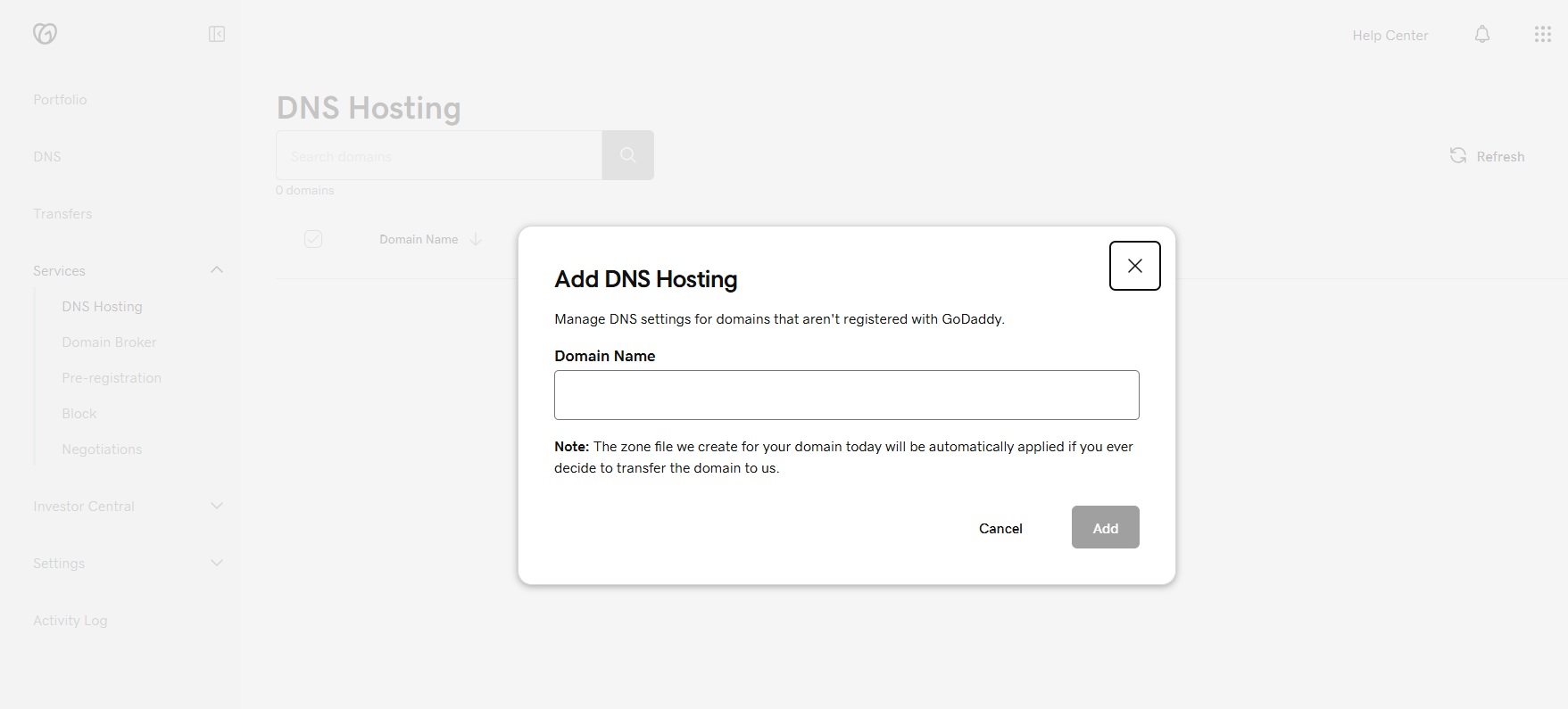
- Add DNS Hosting. Enter your existing domain in the text box, then click the Add button.
- You can temporarily skip setting GoDaddy NS records and configure Aurora SendCloud DNS records first. Remember to update the GoDaddy NS records in your domain registrar later; otherwise, Aurora SendCloud DNS will not take effect. Click Done when ready.
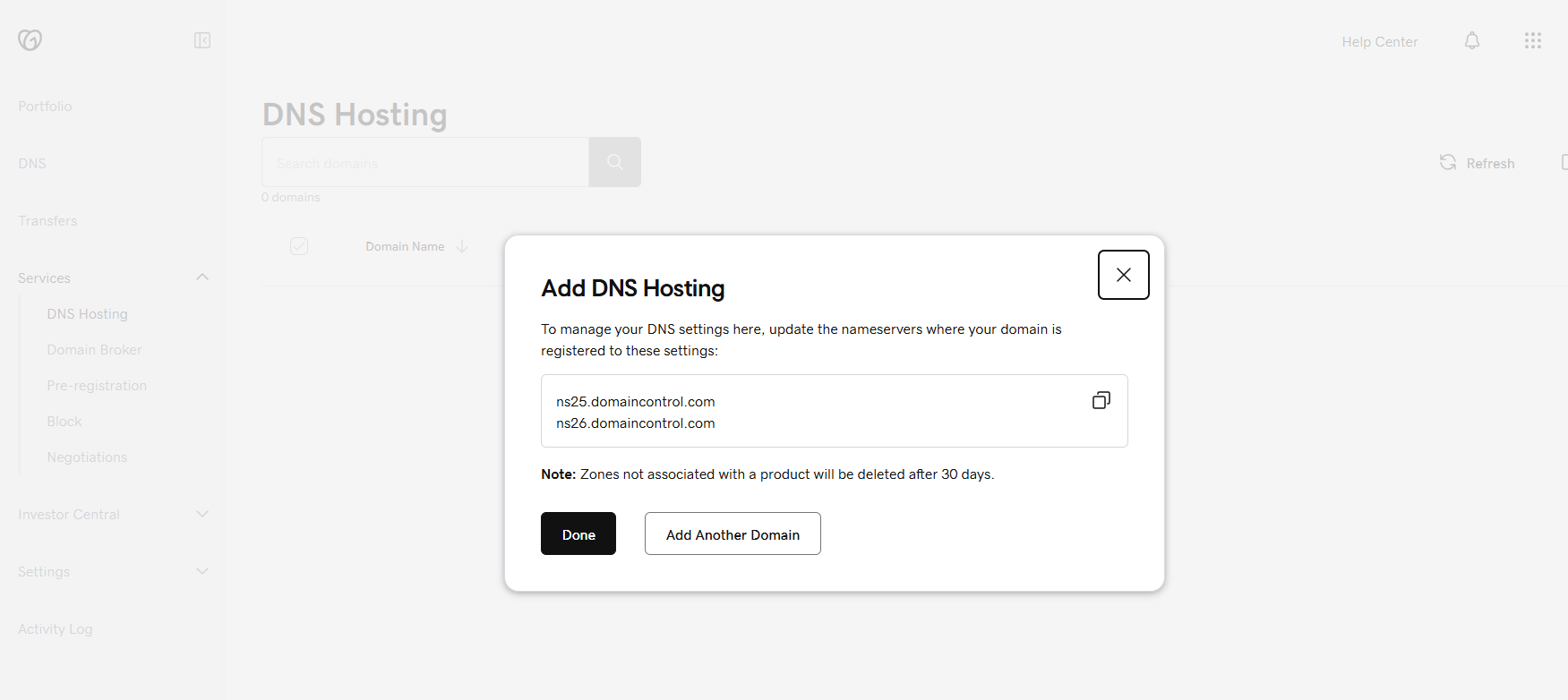
- Click the newly added domain. Enter the Aurora SendCloud DNS records by following the relevant sections of this guide below.
Configuring the Domain
Once the domain has been added, access it by following these steps:
- Log in to your GoDaddy account.
- Go to Domain Management.
- Find the domain you want to configure and click Manage.
- Click Add Record (or a similar option) to configure the DNS records.
Configuring SPF
SPF (Sender Policy Framework) records help protect your domain from spoofed email and reduce the likelihood that your messages will be marked as spam.
Configuring an SPF Record for the Primary Domain
In your GoDaddy dashboard, enter the SPF record information displayed in the Aurora SendCloud dashboard.
| Field | Value |
|---|---|
| Record Type | TXT |
| Host Record | @ |
| Record Value | v=spf1 include:sendcloud.org ~all (When activating multiple regions, please configure according to the actual requirements on the page) |
| TTL | 600 (seconds) |
Note: If you already have an SPF record for this primary domain, insert include:sendcloud.org into the existing record. Ensure this text appears after v=spf1 and before ~all.
Configuring SPF Records for Subdomains
| Field | Value |
|---|---|
| Record Type | TXT |
| Host Record | Subdomain Prefix (e.g., sc) |
| Record Value | v=spf1 include:sendcloud.org ~all (When activating multiple regions, please configure according to the actual requirements on the page) |
| TTL | 600 (seconds) |
Configuring DKIM
DKIM (DomainKeys Identified Mail) records help verify your domain to prevent forged emails and reduce the likelihood of your messages being marked as spam.
Configuring a DKIM Record for the Primary Domain
| Field | Value |
|---|---|
| Record Type | TXT |
| Host Record | sendcloud._domainkey (or the value assigned by Aurora SendCloud for your domain) |
| Record Value | k=rsa; p=MIGfMA0GCSqGSIb3DQEBAQUA... (Please configure according to the actual requirements on the page) |
| TTL | 600 seconds |
Note: Your DKIM host record may have one of the following values: default.domainkey, sc.domainkey, etc. Be sure to use the value assigned by Aurora SendCloud for your domain.
Configuring a DKIM Record for a Subdomain
| Field | Value |
|---|---|
| Record Type | TXT |
| Host Record | sendcloud._domainkey.subdomain prefix (e.g., sendcloud._domainkey.sc) |
| Record Value | k=rsa; p=MIGfMA0GCSqGSIb3DQEBAQUA... (Please configure as specified on the page) |
| TTL | 600 (seconds) |
Configuring MX Records
MX records specify where emails sent to your domain should be delivered.
Configuring an MX Record for the Primary Domain
| Field | Value |
|---|---|
| Record Type | MX |
| Host Record | @ |
| Record Value | mx.sendcloud.org (Please configure as specified on the page when enabling multiple regions) |
| Priority | 10 |
| TTL | 600 (seconds) |
Note: Ensure that only Aurora SendCloud MX records are configured for your domain. MX records for other email providers can cause unpredictable email delivery.
Configuring MX Records for Subdomains
| Field | Value |
|---|---|
| Record Type | MX |
| Host Record | Subdomain Prefix (e.g., sc) |
| Record Value | mx.sendcloud.org (When enabling multiple regions, please configure according to the instructions on the page) |
| Priority | 10 |
| TTL | 600 (seconds) |
Configuring DMARC
DMARC (Domain-based Message Authentication, Reporting & Conformance) is an email authentication protocol that protects your domain from spoofing and phishing attacks. It builds on SPF and DKIM to provide clear policy guidance for inbox providers.
Configuring a DMARC Record for the Primary Domain
| Field | Value |
|---|---|
| Record Type | TXT |
| Host Record | _dmarc |
| Record Value | v=DMARC1; p=none; rua=mailto:[email protected]; ruf=mailto:[email protected]; fo=1 |
| TTL | 600 seconds |
Parameter Description:
v=DMARC1: Protocol versionp=none: Monitor mode (no enforcement)p=quarantine: Quarantine mode (messages that fail verification will be sent to spam)p=reject: Reject mode (messages that fail verification will be rejected)rua: Email address for aggregated reportsruf: Email address for forensic reportsfo=1: Failure reporting option
Configuring a DMARC Record for a Subdomain
| Field | Value |
|---|---|
| Record Type | TXT |
| Host Record | dmarc.Subdomain prefix (e.g., dmarc.sc) |
| Record Value | v=DMARC1; p=none; rua=mailto:[email protected] |
| TTL | 600 seconds |
Domain Registrar and Name Server Records
If you recently migrated from another DNS hosting provider (or are currently migrating) and your Aurora SendCloud DNS records are failing to verify in the Aurora SendCloud control panel, you may need to update your domain's registration information.
Whenever anyone switches DNS hosting providers, they must update their name server (NS) records in their registrar's system. Your registrar is the company with which you purchased your domain name and registered it on the internet.
If you need help identifying your domain's registrar, use the ICANN WHOIS website.
Need Support?
The Aurora SendCloud support team is happy to help. Contact us from the Support page in your Aurora SendCloud control panel, and we'll get back to you as soon as possible.
Important Notes
- The DNS record values in this guide are examples only. Refer to the actual values displayed in your Aurora SendCloud dashboard.
- After configuration, DNS records may take some time to propagate globally (typically several minutes to several hours).
- Set the TTL to a low value (e.g., 300–600 seconds) for faster verification. After successful verification, you can increase it as needed.
Updated 4 months ago