
Email templates Trash
Email templates that have been deleted (moved to the Trash), where they are temporarily stored before being permanently removed.
Overview
The Trash serves as a safety net for your email templates. When you delete a template, it is not permanently removed right away. Instead, it is moved to the Trash, where it stays for 30 days before being automatically and permanently deleted.
During these 30 days, you can:
- Preview a template content by in a read-only window.
- Restore a deleted template back to your active template list
- Permanently delete a template if you no longer need it
Templates in the Trash cannot be edited. You can only preview, restore or permanently delete them.
To access the Trash, log in to the Aurora SendCloud platform and navigate to Content > Template Trash from the left menu.
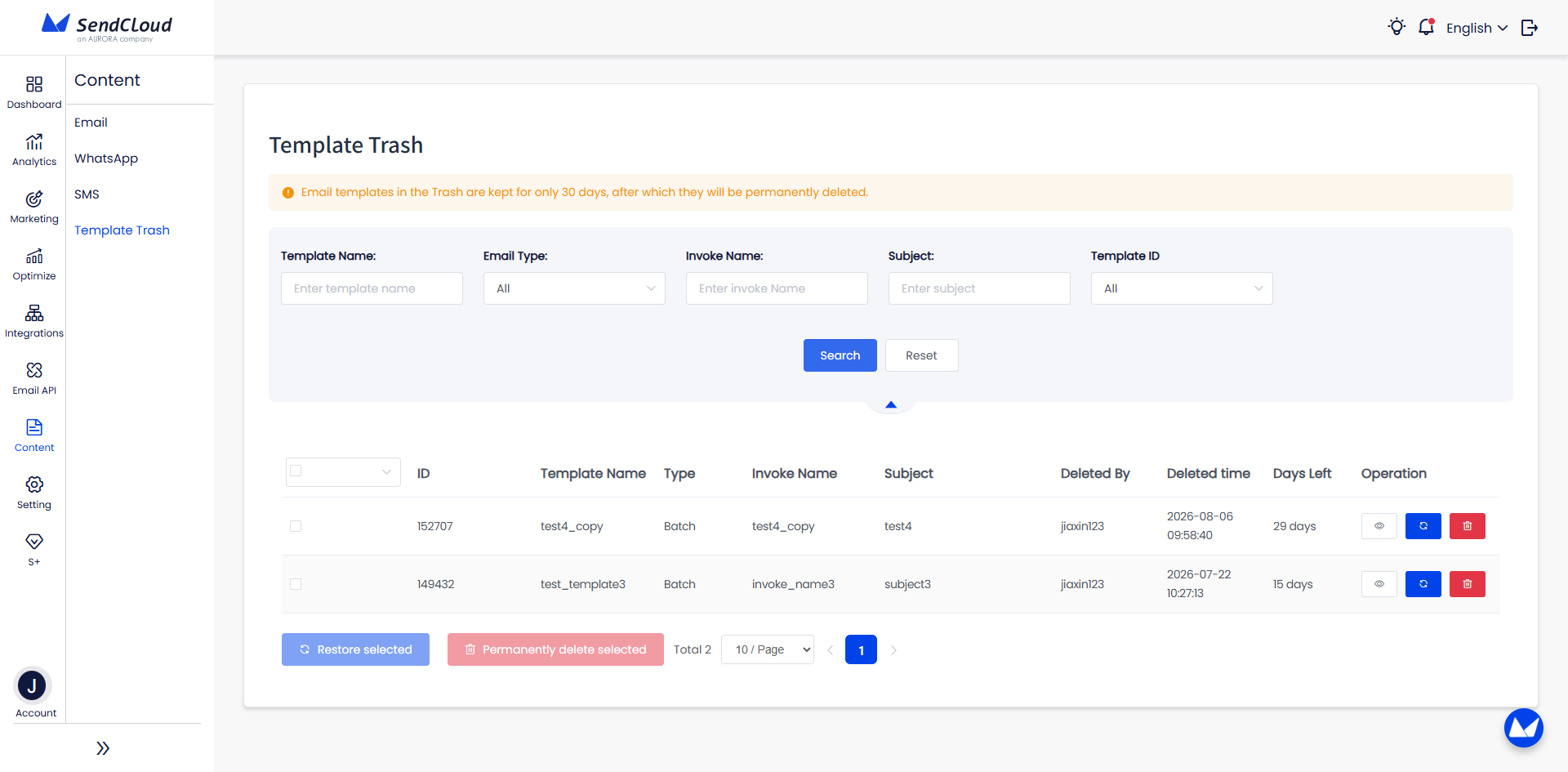
Trash List
The Trash List page displays comprehensive information for all deleted templates in your account:
| Column | Description |
|---|---|
| ID | Template unique identifier |
| Template Name | Template identification name |
| Type | Template type (Batch / Trigger) |
| Invoke Name | Unique identifier used when making API calls |
| Subject | Email subject line (maximum 256 characters) |
| Deleted By | The user who moved the template to the Trash |
| Deleted Time | When the template was deleted |
| Days Left | Remaining days before auto-deletion (shows "Expiring soon" when less than 1 day left) |
- Templates are sorted by Deleted Time (newest first).
Search & Filter
The search bar is located at the top of the Trash List page. The search or filter works across the following template attributes:
- Template Name
- Email Type
- Invoke Name
- Subject
- Template ID
Template Operations in Trash
On the Trash List page, the following action options are available in the rightmost column:
- Preview – Previews your email template. From the preview window, you can click Restore or Permanently Delete.
- Restore – Moves the template back to your active template list. This action is reversible (you can delete it again if needed).
- Permanently Delete – Permanently deletes the selected email template. Caution: This action is irreversible and cannot be undone. You will be required to enter your password to confirm the deletion.
Batch Operations in Trash
On the leftmost column of the Trash list, you'll find checkboxes for selecting templates. You can:
- Page - Select templates on the current page
- All - Select all templates across all pages
- Reset - Clear all selections
- or Manually select specific templates by ticking individual checkboxes
After making your selection, batch operations become available at the bottom of the list:
- Restore Selected – Restores all chosen templates.
- Permanently Delete Selected – Permanently deletes all chosen templates. Caution: This action is irreversible and cannot be undone. You will be required to enter your password to confirm the deletion.
Auto-Cleanup (30-Day Retention)
Templates in the Trash are kept for 30 days from the deletion time.
- After 30 days, they are automatically and permanently deleted by the system.
- You will receive an email notification around Day 23 (when approximately 7 days remain) to remind you that the template is approaching its expiration date.
- The email lists all templates that will be cleaned up soon.
Check the "Days Left" column in the Trash to see how much time you have before a template is auto-deleted.
Frequently Asked Questions
Q: I deleted a template by mistake. Can I get it back?
A: Yes. Go to the Trash and click Restore next to the template. You have 30 days from the deletion date to do this.
Q: What happens if I restore a template with the same templae name as an existing one?
A: If a template with the same name already exists in your active list, the system will prompt you with the following options:
- Replace – Overwrite the existing template with the one from the Trash. The old template will be moved to the Trash.
- Rename – Keep both templates by giving the restored template a new, unique name.
- Cancel – Close the prompt or click Skip button without making any changes. The template remains in the Trash.
Choose the option that best fits your needs.
Q: What happens if I delete a template that is linked to an active campaign?
A: You cannot delete a template that is currently linked to an active campaign. The system will block the deletion and display an error message. To delete the template, you must first unlink it from the campaign.
Q: Can an account creator/admin restore a template deleted by another user?
A: Yes. Account creator/admin and users with "Email Template All Access" can restore or permanently delete any template in the Trash, regardless of who deleted it.
Q: Can I recover a template after it has been permanently deleted?
A: No. Once a template is permanently deleted (either manually or by the 30-day auto-cleanup), it cannot be recovered.
Updated about 2 hours ago